 Quizstack
React useEffect: When You Need It and When You Don't
Discover why useEffect is often overused in React applications and learn cleaner patterns to simplify your components and avoid common pitfalls.
29/08/2026
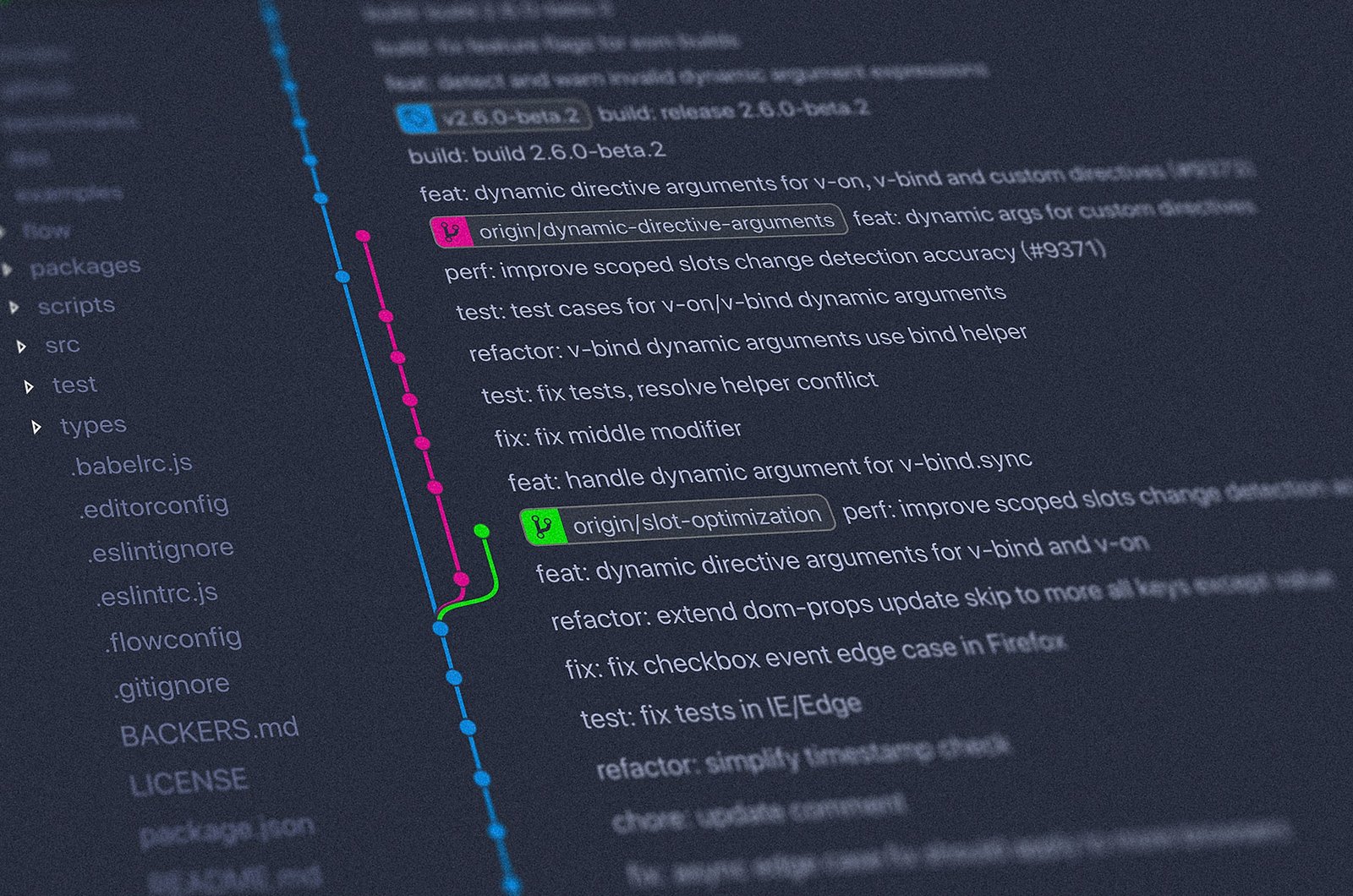
Git has become the de facto standard for version control in software development. Whether you're working solo or collaborating with a team of hundreds, understanding Git is essential. This guide covers the core concepts and commands you need to start working confidently with Git.
Git is a distributed version control system created by Linus Torvalds in 2005. Unlike centralized systems, every developer has a complete copy of the repository, including its full history. This architecture enables offline work, faster operations, and robust backup through redundancy.
The key insight behind Git is that it tracks snapshots of your project, not differences between files. Each commit captures the state of all tracked files at a specific moment, creating a timeline you can navigate, branch from, and merge back together.
Before your first commit, configure your identity:
git config --global user.name "Your Name"
git config --global user.email "your.email@example.com"
These details appear in every commit you make. The --global flag applies this configuration to all repositories on your machine.
You have two ways to start working with Git. To create a new repository in your current directory:
git init
To clone an existing repository from a remote source:
git clone https://github.com/username/repository.git
Cloning downloads the entire repository, including all branches and commit history.
Understanding Git's three main states is crucial. Your files can be in one of these states: modified, staged, or committed.
Modified means you've changed a file but haven't marked it for the next commit yet. Staged means you've marked a modified file to be included in your next commit snapshot. Committed means the data is safely stored in your local database.
This leads to the basic Git workflow: modify files, stage the changes you want to include, then commit those staged changes.
Check the status of your files at any time:
git status
This shows which files are modified, which are staged, and which are untracked. To stage a file for commit:
git add filename.js
To stage all changes in the current directory:
git add .
Once your changes are staged, commit them with a descriptive message:
git commit -m "Add user authentication feature"
Write commit messages that explain what changed and why. Your future self and teammates will thank you.
To see the commit history:
git log
For a more compact view:
git log --oneline
To see what changed in a specific commit:
git show abc1234
To compare your working directory with the last commit:
git diff
Branches are Git's killer feature. They allow you to diverge from the main line of development and work in isolation without affecting other branches.
Create and switch to a new branch:
git checkout -b feature/new-login
Or using the newer syntax:
git switch -c feature/new-login
List all branches:
git branch
Switch between existing branches:
git checkout main
# or
git switch main
When your feature is complete, merge it back into the main branch:
git checkout main
git merge feature/new-login
If Git can't automatically merge changes, you'll encounter a merge conflict. Git marks the conflicting sections in your files, and you must manually resolve them before completing the merge.
Remotes are versions of your repository hosted elsewhere—typically on platforms like GitHub, GitLab, or Bitbucket.
View your configured remotes:
git remote -v
Fetch changes from a remote without merging:
git fetch origin
Pull changes and merge them into your current branch:
git pull origin main
Push your local commits to the remote:
git push origin main
When pushing a new branch for the first time:
git push -u origin feature/new-login
The -u flag sets up tracking, so future pushes only require git push.
Git offers several ways to undo changes depending on what state they're in.
Discard changes in a modified file (not yet staged):
git checkout -- filename.js
# or
git restore filename.js
Unstage a file while keeping your modifications:
git reset HEAD filename.js
# or
git restore --staged filename.js
Amend the most recent commit (useful for fixing typos in commit messages or adding forgotten files):
git commit --amend -m "Corrected commit message"
Revert a commit by creating a new commit that undoes the changes:
git revert abc1234
Not everything belongs in version control. The .gitignore file tells Git which files or directories to ignore:
# Dependencies
node_modules/

# Environment files
.env
.env.local

# Build output
dist/
build/

# IDE settings
.vscode/
.idea/
Create this file at the root of your repository. Patterns can use wildcards, and each line specifies a pattern to ignore.
Commit often with meaningful messages. Small, focused commits are easier to review, revert, and understand. Pull before you push to avoid conflicts. Use branches for new features and bug fixes—never commit directly to main in a team environment. Review your changes with git diff before committing to avoid accidentally including debug code or sensitive information.
Git's learning curve can feel steep at first, but the core workflow is straightforward: make changes, stage them, commit them, and push to share with your team. Master these basics, and you'll have a solid foundation for more advanced Git operations like rebasing, cherry-picking, and interactive staging. The commands covered here will handle the vast majority of your daily version control needs.

Discover why useEffect is often overused in React applications and learn cleaner patterns to simplify your components and avoid common pitfalls.

Simple principles from Refactoring UI that separate amateur interfaces from polished products.
TypeScript isn't a new language—it's JavaScript with guardrails that become essential at scale.
Test your HTML, CSS, JavaScript, PHP, SQL skills and more with free quizzes. Perfect for beginners learning to code or developers preparing for interviews.